Scan code using camera or QR scanner android You’re standing at a restaurant table, trying to scan a QR code for the menu. Your friend is already ordering appetizers, and you’re still tapping your screen like it’s 2026. Sound familiar?
Here’s the good news: most modern Android phones let you scan codes directly with your built-in camera. No extra app needed. But wait—does that make dedicated QR scanner apps totally useless? Not exactly.
I’ve tested both methods for months. On a Pixel, a Samsung, and even a cheap Motorola. And honestly? The “best” way depends on you—your phone, your habits, and how much you care about privacy or extra features.
First Things First: Can Your Camera Do It Alone?
Grab your Android phone. Open the default camera app. Point it at a QR code—any code, like one on a WiFi router sticker or a product package.
Do you see a little pop-up or a link appear on the screen? If yes, congratulations. Your phone has native QR reading built right into the camera. Google added this feature back in Android 8 (Oreo), but many manufacturers took their sweet time enabling it.

Today, almost every phone running Android 10 or newer has this. Samsung, OnePlus, Xiaomi, Nokia—yep. Even some budget phones from 2026 onward.
If nothing happens when you point at a code? Then you’re in the old-school boat. You’ll need a third-party scanner app.
Why I Almost Never Use a QR Scanner App Anymore (And You Might Not Need To Either)
Once I discovered that my Pixel could scan codes straight from the camera, I deleted every single QR scanner app on my phone. And honestly? I haven’t missed them. Here’s why I’m team camera all the way now.
Speed is everything. When you use your camera, you go from locked phone to scanned code in about three seconds. Unlock with your fingerprint, swipe to camera (or double-tap the power button), point, and tap the link. That’s it. No waiting for an app to load. No staring at a splash screen. No “please rate us five stars” pop-ups. Just speed.
Point Camera at the QR Code
Hold your phone steady and place the QR code inside the camera frame.
Make sure:
- The code is clearly visible
- Lighting is good
- Camera focus is sharp
- The code is not blurry or damaged
The Annoying Moments When Your Camera Just Won’t Cooperate
For all its convenience, the built-in camera has some real weak spots. And if you’ve ever stood there like a fool, waving your phone around while a QR code refuses to scan, you’ve experienced them.
Low light is the enemy. Your camera needs light to see. That’s just physics. But QR codes love to show up in dim bars, dark restaurant corners, and poorly lit parking garages. You’ll point your camera at the code, and the screen will just show a muddy gray mess.
No pop-up. No link. Nothing. You can try turning on your phone’s flashlight manually, but by the time you do that, you might as well have just opened a dedicated scanner app.
When a Dedicated QR Scanner App Is Actually Worth Downloading
I’m not anti-app. I’m anti-bad-app. And there are definitely situations where a dedicated QR scanner is the right tool for the job. Here’s when I reach for one.
A QR code can contain:
- Website links
- Contact information
- Wi-Fi passwords
You scan codes in low light regularly. If you work retail, manage inventory, or just eat at a lot of dimly lit restaurants, get a scanner app with a built-in flashlight. It will save you so much frustration.
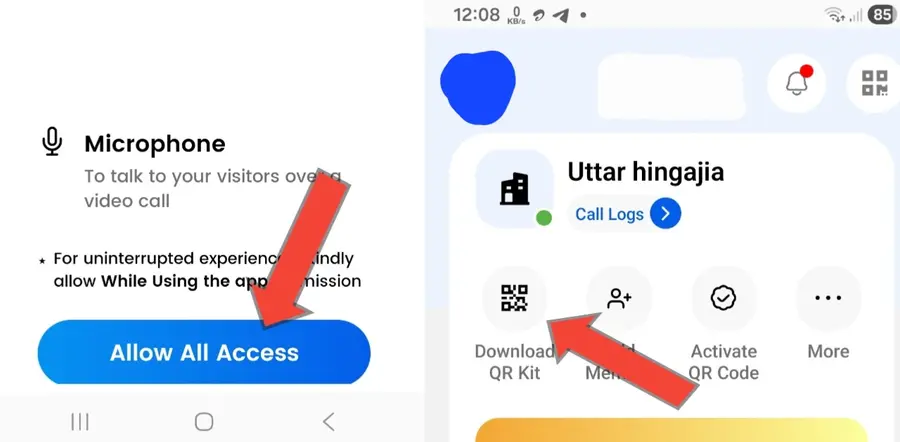
Follow these steps:
- Frist Open app click on “Allow All Access”
- After click Allow All Access, click on “Download QR Kit”
You need to scan damaged or faded codes. Some scanner apps are just better at error correction than your camera. They can read a QR code that’s ripped, partially covered by a sticker, or faded from sun exposure. The app “QR & Barcode Scanner” by TeaTime has saved me multiple times when a shipping label was crumpled.
The Case for Just Using Your Camera (No Extra Apps)
Why download another app if you don’t have to? Here’s why I personally use the camera method 90% of the time:
- It’s instant. Unlock phone, open camera, point, tap the link. That’s it.
- No ads. Oh man, this is huge. Many free QR scanner apps are littered with pop-ups and fake “virus detected” alerts. Your camera won’t try to sell you anything.
- Less clutter. Your phone already has enough apps you never use. Why add one more?
- Privacy. Third-party scanners can (and sometimes do) collect your scan history. Your camera app? Usually not.
But here’s the catch – camera-based scanning often doesn’t work great in low light. Or on really tiny codes. Or if the code is printed on a curved bottle. You’ll find yourself holding the phone at weird angles, backing up, leaning in… it gets annoying fast.
When a Dedicated QR Scanner App Wins
Okay, so you tried the camera method and it’s not cutting it. Or your phone doesn’t support it at all. That’s when a proper QR scanner app is actually a lifesaver.
I keep one installed for specific situations:
- Dim restaurants or bars – Good scanner apps have a built-in flashlight button. Your camera can’t do that natively.
- Scanning from your screen – Say you have a QR code on your laptop monitor. Most camera apps ignore it. A dedicated scanner handles it fine.
- Old or damaged codes – Maybe the code is partially ripped, faded, or dirty. Scanner apps often use better error correction.
- History tracking – Need to remember a code you scanned last week? Camera won’t save that. Apps like “QR & Barcode Scanner” (by Gamma Play) keep a history log.
Warning though – avoid the super popular “QR Code Reader” apps with millions of downloads but shady permissions. If an app asks for your location, contacts, or storage “to scan a code” – run. A good scanner only needs camera access. That’s it.
How to Spot a Sketchy QR Scanner App (Before It Spams You)
Okay, let’s say you’ve decided you need a dedicated app. How do you avoid the garbage? I’ve installed and uninstalled more QR scanners than I care to admit. Here’s what I’ve learned about separating the good from the bad.
Step-by-Step: Scan a Code With Your Camera (Pixel / Samsung / Most Androids)
- Open the Camera app.
- Steady your hand and point it at the QR code. Don’t tap to focus – just let it sit for a second.
- A small notification or link should appear on the screen (often at the bottom).
- Tap that link. Your phone will open the website, add the WiFi, or do whatever the code says.
No link appearing? Go to your camera settings. Look for something like “Scan QR codes” or “Google Lens suggestions” and turn it on. On Samsung, it’s under Camera > Settings > “Scene optimizer” > enable “QR scanning”.
If nothing happens? Then your camera isn’t configured to scan codes. But before you run off to download an app, check one thing: your camera settings. On many phones, QR scanning is a toggle that’s turned off by default.
Related Article: Turn Volume Buttons into Smart Shortcuts
On a Samsung, go to Camera > Settings > Scene optimizer > and turn on “Scan QR codes.” On a Pixel, it’s under Camera > Settings > More settings > Google Lens suggestions. On Xiaomi, look for “Scan QR codes” inside the camera’s advanced settings.
Smart Android Users Always Scan Securely
On many Androids, you don’t even need the camera app. Just swipe down from the top of your screen twice to open Quick Settings. Look for a “Scan QR code” tile. On Pixels, it’s right there. On Samsung, you might need to add it via the edit button (three dots).
Tap that tile, and it opens a minimalist scanner – no gallery, no selfie mode Smart Android Users Always Scan Securely, just a pure QR reader. Perfect for quick scans without opening your camera roll or an app.
| Tap to Scan QR |
|---|
| Try Secure QR Scanner |
| Secure Scan Here |
I’m not paranoid, but I do pay attention. A lot of those third-party QR scanner apps ask for permissions that make zero sense. Why does a QR scanner need access to your contacts? Or your storage? Or your precise location? The answer, in most cases,
is that they’re selling your data. Some of them are outright tracking every code you scan and sending that information back to ad networks. Your camera app isn’t doing that. On a Pixel or a clean Android phone, the QR scanning happens locally on your device. Nothing gets uploaded unless you manually tap a link.
Final Verdict (So You Can Stop Overthinking)
- Use your camera if it works. It’s faster, cleaner, and safer.
- Download a simple QR scanner app if your camera fails, or if you scan codes in low light or from screens.
- Never pay for a QR scanner. Free ones exist that are totally safe and ad-free (open source is your friend).
And here’s the bottom line: if you’re scanning a code and it feels clunky or sketchy, trust your gut. QR codes themselves are neutral – it’s the links they hide. Always check the preview URL before tapping “open.”